Add additional header app policy
During this task we will add optional application policy.
The root, represented by '/', is protected by Access Gateway by default. However, all users who can access the root can also access any subset of resources beneath the root. You can use a policy to protect subsets of the parent root URL.
See About application policy for an overview of the user policy.
See Manage Application Policy for details and examples of policy.
To add a policy statement which protects a specific portion of an application, follow these steps:
- In the Policies tab, click the (+) icon.
- Select one of the following:
- Protected: Creates a policy rule that protects a specific URI.
- Unprotected: Creates a policy rule that marks a URL unprotected.
- Adaptive: Creates an adaptive policy rule.
- Protected Rule: Creates a Protected policy rule.
- Enter an appropriate Name for the rule.
- Enter the Resource Path to the URI being protected. For example, a protected rule might protect the /secure URI.
- Depending on the rule type, enter additional details, such as Resource Matching Rule.
For example, to create a rule that only allows users with a valid username value to access the /secure/ URL, create a Protected Rule with Resource Matching Rule regular expression username=*.
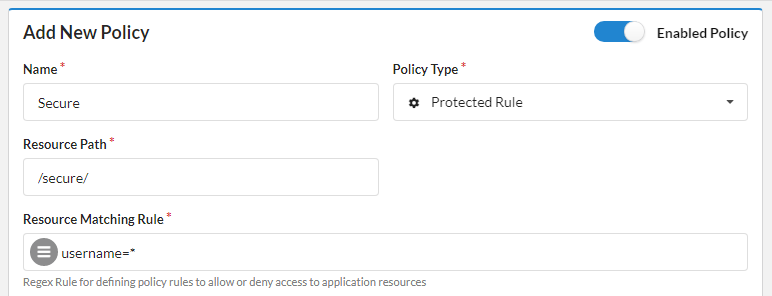
-
Repeat as required. Click Done when complete.
Next steps